This configuration dialog contains all settings that control IMatch AI, semantic search, and related features.
Once you have set up your IMatch AI settings and enabled semantic search, IMatch AI automatically maintains the semantic search index (embeddings).
If new files are added to the database, or files already in the database are rescanned, IMatch AI adds/updates the embeddings for these files. If you change the values of metadata tags used for embeddings, IMatch automatically updates the embeddings for affected files.
To use semantic search and create embeddings with IMatch AI, you have to download at least one of the supported models.
Although embedding models are usually much smaller than the AI models that can run locally in Ollama or LM Studio for AutoTagger, they are still too large to include in the regular IMatch installer. In addition, not all IMatch users will use embeddings, so it makes no sense to force them to download models with the IMatch installer.
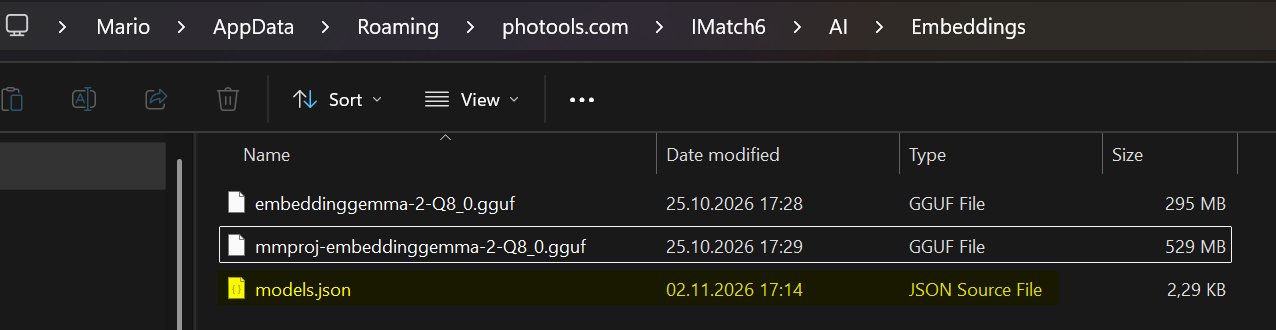
IMatch AI looks for embedding models in the folder %APPDATA%\photools.com\IMatch6\AI\Embeddings. This folder by default contains only the file model.json. Download or copy embedding models directly into this folder, not in sub-folders. For example:
You can see and change this folder on your PC by selecting Show advanced options in this dialog.
Move the entire folder, including models.json, to another disk if you are low on disk
This list may change over time. Let us know about interesting models that we should add via the IMatch user community.
After downloading a new model, you must restart IMatch so the new model is detected.
Google Gemma Embedding | This model has been superseded by Google Gemma Embedding 2 (see below). We keep this older model accessible for users who have created embeddings with it previously or who run IMatch on very old computers. This is a small but powerful 300M parameter model that runs well even on older and slower hardware. This model only needs about 600 MB of graphics card memory (VRAM) per thread for a full offload to the GPU. This means it can run entirely on the graphics card, even on older cards or cards with only two GB of VRAM. This model can run CPU-only when IMatch AI does not detect a supported graphics card in your computer. This is just slower than using a graphics card. IMatch AI automatically takes care of this in the background. Downloading the ModelDownload the model using this link and store it in the embedding model folder shown in this dialog. Restart IMatch after downloading the model. If your graphics card has 3 GB of VRAM, try 2 threads. If it has 4 GB of VRAM, try 6 threads. More threads means more embeddings created in parallel, which is a lot faster. Read the section on performance tuning below to learn how you can fine-tune the IMatch AI for your computer. Use the Performance tab in Windows Task Manager to monitor memory usage for the graphics card and regular RAM. You can see the amount of memory for your graphics card in Windows Task Manager. |
Google Gemma Embedding 2 | This is a powerful state-of-the-art (as of November 2026) multimodal 700-million-parameter model that runs well on CPU-only or any graphics card supported by IMatch AI. It has an 8K-token context length, supports text in 100 languages, and can create embeddings for images. This model requires about 1–1.5 GB of graphics card memory (VRAM) and 1–1.5 GB of RAM per thread for a full offload to the GPU. If IMatch AI does not detect a supported graphics card, it runs the model on your regular processors. This works the same, just slower. Multi-Modal ModelThe model can create embeddings from text and/or directly from images. If you select this model, IMatch displays the option Create embeddings for images below the tag list in this dialog.  See Search Using Images to learn more about this fascinating feature. Downloading the ModelsThis is a multimodal model, and you have to download two separate model files (about 1 GB in total).
Restart IMatch after downloading the model. If your graphics card has 3 GB of VRAM, try 2 threads. If it has 4 GB of VRAM, try 6 threads. More threads means more embeddings created in parallel, which is a lot faster. Read the section on performance tuning below to learn how you can fine-tune the IMatch AI for your computer. Use the Performance tab in Windows Task Manager to monitor memory usage for the graphics card and regular RAM. You can see the amount of memory for your graphics card in Windows Task Manager. If IMatch AI does not detect a supported graphics card or your graphics card has only one or two GB of VRAM, do not enable the option Create embeddings from images; stick to text embeddings for tags only. Creating embeddings for images requires a suitable graphics card and is very slow on CPU-only. |
Semantic search uses AI to generate so-called embeddings from selected tag values. See Semantic Search with AI for detailed information.
The following settings control how IMatch creates embeddings for semantic search.
Model | Select the model for which you want to configure tags and options. IMatch may offer one or more models in this drop-down list, depending on which models you have downloaded. This control is disabled when you have not downloaded any models. See Downloading Models for more information about the supported models. |
Tags | This list controls which tags IMatch uses to generate embeddings for this model. Useful tags typically include description and hierarchical keywords, if they contain data. The best results are achieved when your image descriptions are fairly detailed, or when you maintain a separate tag that contains text optimized for generating embeddings. See Semantic Search with AI for detailed information. The information in the tags is crucial for the quality of semantic search. Semantic search works very well when the source data is good. |
Embeddings from Images | This option is offered when a multimodal model is selected. If enabled, IMatch AI creates embeddings directly from images. Once embeddings have been created, you can search your database using both text queries and images as search input. |
Minimum Length | The minimum length of a tag value to consider for embedding. Avoid using very short texts or phrases, as they can negatively affect embedding and search quality. The default is 5, which is a compromise in case you create embeddings from keywords. If you create embeddings from descriptions or dedicated embedding tags, you can increase this value to 10 or more to keep empty or incomplete descriptions out of the embedding index. Junk data can pollute the index, making the search less efficient. |
Ignore Files in this category | This feature is mostly meant for testing purposes. While you experiment with embeddings to understand which tags to use and which AutoTagger prompts to use to fill dedicated embedding tags, and so on, it makes sense to limit the number of files for which you create embeddings. A typical use for this is to create a new category named Embedding_Test_Set and assign a mix of 500 to 1,000 images to this category. This is your test set. Now create a category named Embedding_Ignore with the following formula: "@All" NOT "Embedding_Test_Set" Then select this category for the Ignore Files in this category option. The embedding engine in IMatch now considers only the files in the Embedding_Test_Set category and ignores all other files in the database. If your test set is in a folder instead of a category, you can change the formula to something like this: "@All" NOT "@RFolder[c:\images\test_set]" Once your tests are complete and you are satisfied with your setup, remove the ignore category by unchecking it in the Category Selector dialog. Then run a database diagnosis to schedule all files with missing embeddings for background processing. Using @AllAnother way to use this feature is to set When you use this option, IMatch will not automatically recreate embeddings when you change the underlying tag because all files are excluded from embeddings. You have to select the files you have changed, open this dialog and then use the Recreate All button in combination with the Only for the n files selected option to recreate the embeddings yourself. |
When you switch to another model or you close the settings dialog with OK, IMatch analyzes the changes you have made and applies them to the database.
Tags added | If you add tags, IMatch adds tasks to the background processing queue to generate embeddings for the added tags for all non-excluded files. |
Tags removed | IMatch removes embedding data for the tags you have removed. |
Minimum length changed | IMatch recreates all embeddings for all non-excluded files to apply the new length settings. |
Embeddings from images modified | Depending on the new state of this option, either existing image embeddings are removed, or all non-excluded files are scheduled for new embeddings. |
Since applying such changes to large sets of files can be time-consuming, IMatch asks if you really want to apply your changes. Only when you confirm are the changes applied and background tasks scheduled.
When you change the contents of a tag referenced by one or more models, IMatch AI automatically updates the corresponding embeddings in the background. If you let IMatch create embeddings from images, the embeddings are automatically updated when image files are added or rescanned.
Use the indicators in the Info & Activity Panel or the Dashboard to see which tasks are running in the background.
The database diagnosis checks for embeddings linked to models that are no longer available and removes them. It also checks for missing embeddings and adds tasks to the background processing queue to recreate them when needed.
To delete embeddings, just remove the corresponding tag, or uncheck the Create embeddings from images option. When you close the dialog with OK, IMatch removes the embedding data after displaying a confirmation dialog.
Missing embeddings can happen if you use the options in this dialog to create embeddings only for a selection of files.IMatch AI, introduced in IMatch 2027, is based on the renowned and popular llama.cpp open-source project, like many other AI tools (including Ollama and Unsloth Desktop).
Currently the IMatch AI is used for generating embeddings for semantic search. We plan to use the integrated AI for other features in the future.
IMatch AI can run on a wide range of hardware configurations. The minimum requirement is that the AVX processor feature be available. IMatch has required AVX since we introduced face recognition years ago.
If the processor in your PC supports AVX2, the IMatch AI can generate embeddings 5 to 10 times faster than with AVX alone.
If your PC has one of the many graphics cards supported by the Vulkan Graphics Library that llama.cpp uses, IMatch AI automatically offloads work to your graphics card for much faster processing, according to the settings you configure in this dialog.
This panel lists the devices detected and supported by IMatch AI and indicates whether the processors in your PC support AVX2 technology, which greatly speeds up AI calculations:

This panel also displays the average execution time for creating embeddings, per model:

This PC creates 7 embeddings (image + description) on average per second (7,12/s), which is very fast.
For text embeddings, which are much faster to create, we get excellent performance (~30 ms per image):

You can use this information to fine-tune the performance of your system by changing the number of threads. If you overload your system, the number of embeddings produced per minute will go down. In that case, reduce the number of threads and re-run your test.
IMatch AI works on the hardware IMatch users have. It is just slower or faster depending on the system. Processors with AVX2 are 5 to 10 times faster for AI work than processors with AVX only. A modern graphics card with 4 or more GB VRAM can be 5 to 50 times faster than AVX2.
If your PC is older and has only AVX, working with local AI, including the IMatch AI, can be very slow and frustrating.
There is nothing we can do about this; sorry.
It is impossible to automatically adapt all IMatch AI performance features to the hardware users have or the models they run. This is why IMatch ships with safe defaults (CPU-only, 1 thread) and allows the user to fine-tune these settings with the controls explained below.
The settings are stored and applied per model. Different models have different demands for VRAM, RAM, and CPU resources. A small model such as Gemma Embedding may run fine with 4 or even 8 threads on your system, but for the large Qwen 4B or 8B models, only 1 or 2 threads may be feasible, because these models require multiple GB of VRAM and regular RAM per thread.
This setting controls how many parallel threads IMatch can use when processing AI requests. The default is 1, which is a safe default. It gets the work done, but may leave resources unused and take longer.
For CPU-only operation, set the number of threads to 0, or set it to the number of threads reported for your CPU in Windows Task Manager or a lower value.
Setting the number of threads to 0 selects auto. IMatch then tries to optimize the setting for your system automatically, respecting the performance profile you have configured.
If you notice that the IMatch AI uses too many CPU or GPU (graphics card) resources, set the number of threads to a small value, such as 1 or 2, and test again. Then increase the value until you find a good balance between system utilization and AI performance.
If you run larger AI models (e.g., Qwen 4B and especially Qwen 8B instead of Gemma Embedding), use one or two threads only. Each thread requires multiple GB of VRAM and RAM with these models.
While you experiment with threads, keep an eye on the Performance tab in Windows Task Manager. Your goal is to use as many threads as possible without maxing out RAM, VRAM, or processor resources.
This setting controls how many AI model layers IMatch AI is allowed to move (offload) to the GPU (graphics card) in your system. The more layers it can move to the graphics card instead of keeping them in normal (slow) RAM, the faster the AI will run.
By default, IMatch uses the value 0, which means CPU-only. This is the safest but slowest setting.
The value 100 means "offload all layers", which is the fastest and preferred option. The IMatch AI tries to offload as many layers as possible.
Only if the value 100 causes issues with your graphics card, even crashes, configure a smaller value of 5 or 10 and re-test. The same applies if you want to reserve GPU VRAM for other applications.
The behavior often depends on the graphics card, its drivers, other software you run that uses graphics card resources, and the llama.cpp software IMatch uses to run AI locally, so it may not always be possible to predict. This is why IMatch gives you options to control how much graphics card memory (VRAM) can be used for offloading.
This setting controls how aggressively the IMatch AI can use graphics card resources.
Auto | Recommended for most people. IMatch picks a safe default based on your GPU. |
Minimal | Safest choice for weak hardware, CPU-only use, or if you hit memory issues. |
Low | Good for modest laptops or smaller GPUs when you want stability first. |
Balanced | Best general-purpose manual choice for modern GPUs. |
High | For strong GPUs and users who want maximum throughput, especially on larger batches. |
This button schedules all non-excluded files to have their embeddings recreated. In combination with the Only for the n files selected option, you can recreate embeddings for the files selected in the active File Window only.
This is helpful when you experiment with different models, performance settings, and so on. Recreate embeddings with the new settings for a small test set of files selected in the active File Window.
Click this button to immediately assign all files with at least one embedding for the currently selected model to the selected category. This is helpful for testing purposes or when you have lost track of files while working with exclusion categories.
You can create a data-driven category using the variables {File.Embeddings.Model} (first level) and {File.Embeddings.Count} (second level) if you want to track files with embeddings automatically.
IMatch uses an external helper process named IMatchLLHHelper.exe. The IMatch AI starts and terminates these processes as needed, running multiple processes simultaneously, depending on the maximum number of threads allowed in the settings and the current system load.
The reason for using helper processes is isolation. Sometimes, llama.cpp encounters problems and calls abort to terminate the process running it. Without isolation, this would also terminate IMatch—which would obviously be bad.
llama.cpp can terminate the helper process without affecting IMatch. IMatch recognizes when a helper process has been terminated, records this in the log file, and starts a new helper process when needed.
llama.cpp can terminate the helper process without affecting IMatch. IMatch recognizes when a helper process has been terminated, records this in the log file, and starts a new helper process when needed.
llama.cpp can terminate the helper process without affecting IMatch. IMatch recognizes when a helper process has been terminated, records this in the log file, and starts a new helper process when needed.
Because the helper processes run independently of IMatch, they cannot access the IMatch log file. Instead, each helper process creates its own log file using the naming scheme IMATCH6_LLMH_LOG-nn.txt, where nn is a sequential number. The more threads your system can run, the more log files are created in the temporary folder.
IMatch reuses the log file names during each session. If you want to analyze an issue related to the IMatch AI, make copies of the log files before restarting IMatch.
The helper process log files are useful when a model does not work correctly, when your GPU is not being used, or when IMatch AI falls back to CPU-only mode.